

Building your dream website feels exciting, right? If you’re planning to build a website, Webflow is one of the most powerful and flexible no-code platforms available today. It allows you to design, build, and launch professional websites. But when it comes to Webflow pricing, you may find this overwhelming. There are multiple plans, add-ons, billing options, and features that affect your final cost.
Webflow pricing can be confusing if you don’t know which one is right for you. You will see different plans, site plans and workspaces. Many people get stuck here and are afraid of hidden fees or choosing the wrong plan. It depends on your needs, business requirements, features and your budget. In this article, I will discuss everything from free plans to advanced enterprise options. You will learn how to select the ideal plan for your website.
Why is Webflow Pricing & Budgeting Important?
You have designed a beautiful website in Webflow. You are excited to launch it, but then you realize you need to pay for hosting, add team members, or enable e-commerce features. Then, suddenly your budget doubles or triples. However, once you break down the pricing system, it’s not that difficult. Let’s explore why budgeting is important.
- Avoid unexpected costs
- Choose the right plan for your project size and goals
- Plan your monthly or yearly expenses accurately
- Scale your website and team efficiently as you grow
Overview of Webflow Pricing Structure
Webflow’s pricing is split into three main categories:
1. Free Plan: This starting point gives you full control over your designs and access to helpful lessons. This is not a temporary test, you can use it forever. Just know some important features will be locked. It’s a great way to begin if you’re new to Webflow and want to see how everything works.
2. Site Plans: These plans give your website Webflow’s powerful hosting and CMS features. They include standard options for personal or business sites and special e-commerce plans. With any of these plans, you can use your own custom web address while enjoying Webflow’s amazing hosting.
3. Workspaces: These plans are perfect for teams and freelancers. They help you manage many projects or websites and work together more easily. The price depends on how many people use the plan.
Each category serves a different purpose, and you might need a combination depending on your use case.
Detailed Breakdown of Webflow Plans
Free Starter Plan
The Free Starter plan is perfect if you’re new to Webflow or want to experiment without spending money.
What you get:
- Build and publish up to 2 projects with Webflow subdomains (yoursite.webflow.io)
- Up to 2 static pages per site
- Access to Webflow’s design and CMS tools (limited CMS items)
- 50 form submissions lifetime
- 1 GB bandwidth per project
Limitations:
- No custom domain connection
- Limited CMS and form submissions
- No site password protection or backups
This plan is ideal for learning Webflow, building prototypes, or showcasing your portfolio without going live on a custom domain.
Site Plans
Site plans are for hosting your website on your own custom domain, with full access to Webflow’s hosting infrastructure. If you’re ready to put your site online or need more features, Webflow site plans are perfect. These plans are for individual websites. They come in different levels. Site Plan Pricing:
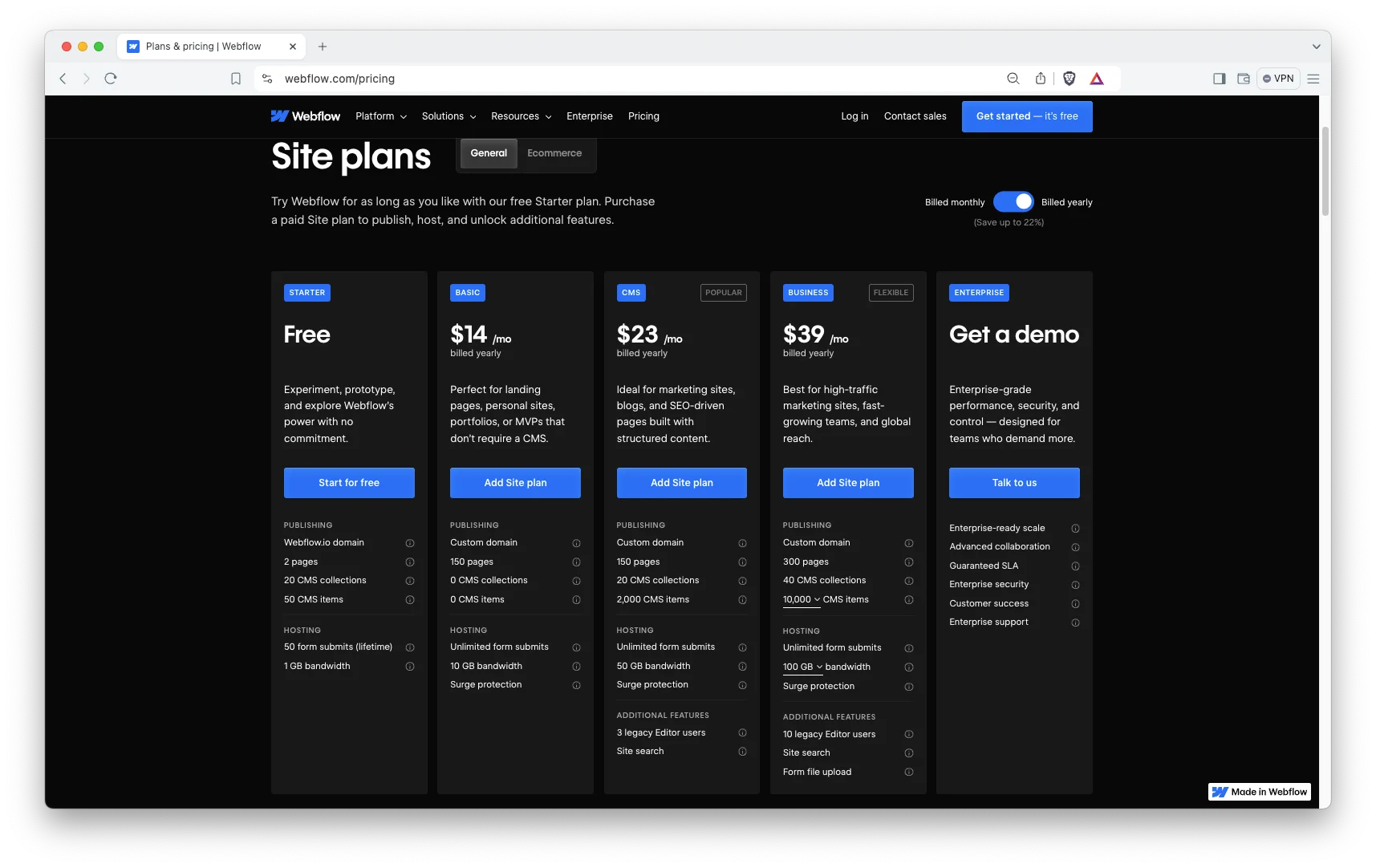
- Basic Plan: Starts at $14 per month. This is ideal for personal websites, blogs, or portfolios. It allows you to add a custom domain, but you can’t use Webflow’s e-commerce features or localization.
- CMS Plan: Starting at $23 per month, this plan includes Webflow’s powerful Content Management System (CMS), perfect for blogs and content-driven sites.
- Business Plan: Starting at $39 per month, this plan is designed for more robust websites that require higher traffic.
- Enterprise Plan: Enterprise Plan offers custom pricing tailored for large organizations. It provides custom scalability, guaranteed uptime (SLAs), and dedicated support, all customized to your specific needs. You also get custom user seats, designed to fit your large team.
Key Notes:
- The Basic plan does not support CMS collections, so it’s best for static sites.
- CMS and Business plans allow you to create dynamic content like blogs, portfolios, and news sites.
- Enterprise plans offer custom options and dedicated support for large companies.
E-commerce Plans
If you sell products or services online, Webflow’s ecommerce plans give you everything you need. You can build and run your entire online store properly.
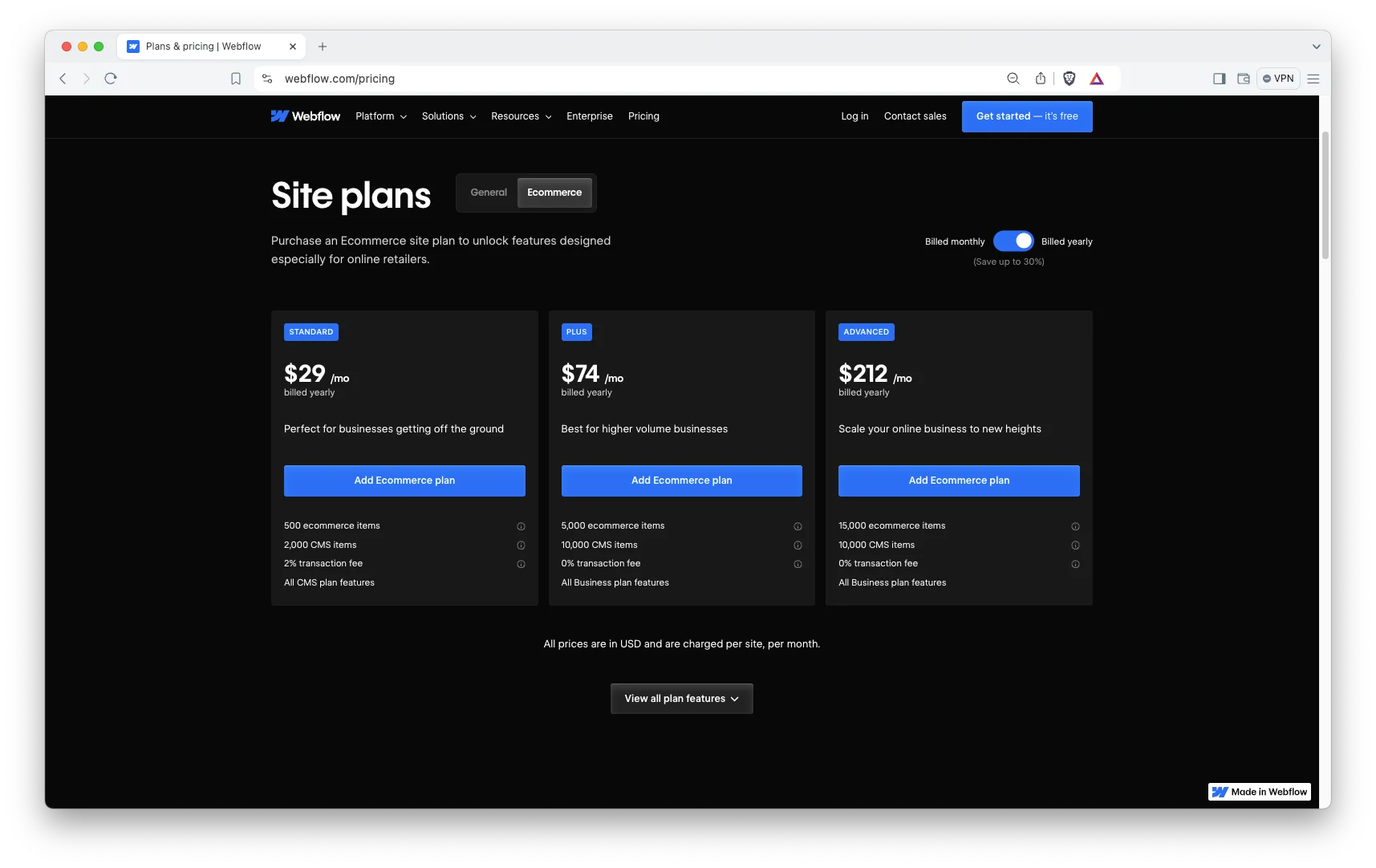
- Standard Plan ($29/month, billed annually): This plan suits small stores, letting you manage up to 500 products with basic e-commerce features. It includes a 2% transaction fee.
- Plus Plan ($74/month, billed annually): Designed for growing businesses, this plan offers advanced features and handles up to 1,000 products. Crucially, it has a 0% transaction fee.
- Advanced Plan ($212/month, billed annually): Ideal for large stores, this plan provides unlimited products, priority support, and also comes with a 0% transaction fee.
Features include:
- Customizable product pages
- Payment gateways like Stripe and PayPal
- Inventory management
- Shipping and tax options
- Customer accounts and discounts
Workspaces
Workspace plans are designed for teams and agencies managing multiple projects and clients. This plan is great for teams aiming to expand. It costs $49 per user each month if billed yearly, or $60 per user each month if billed monthly.
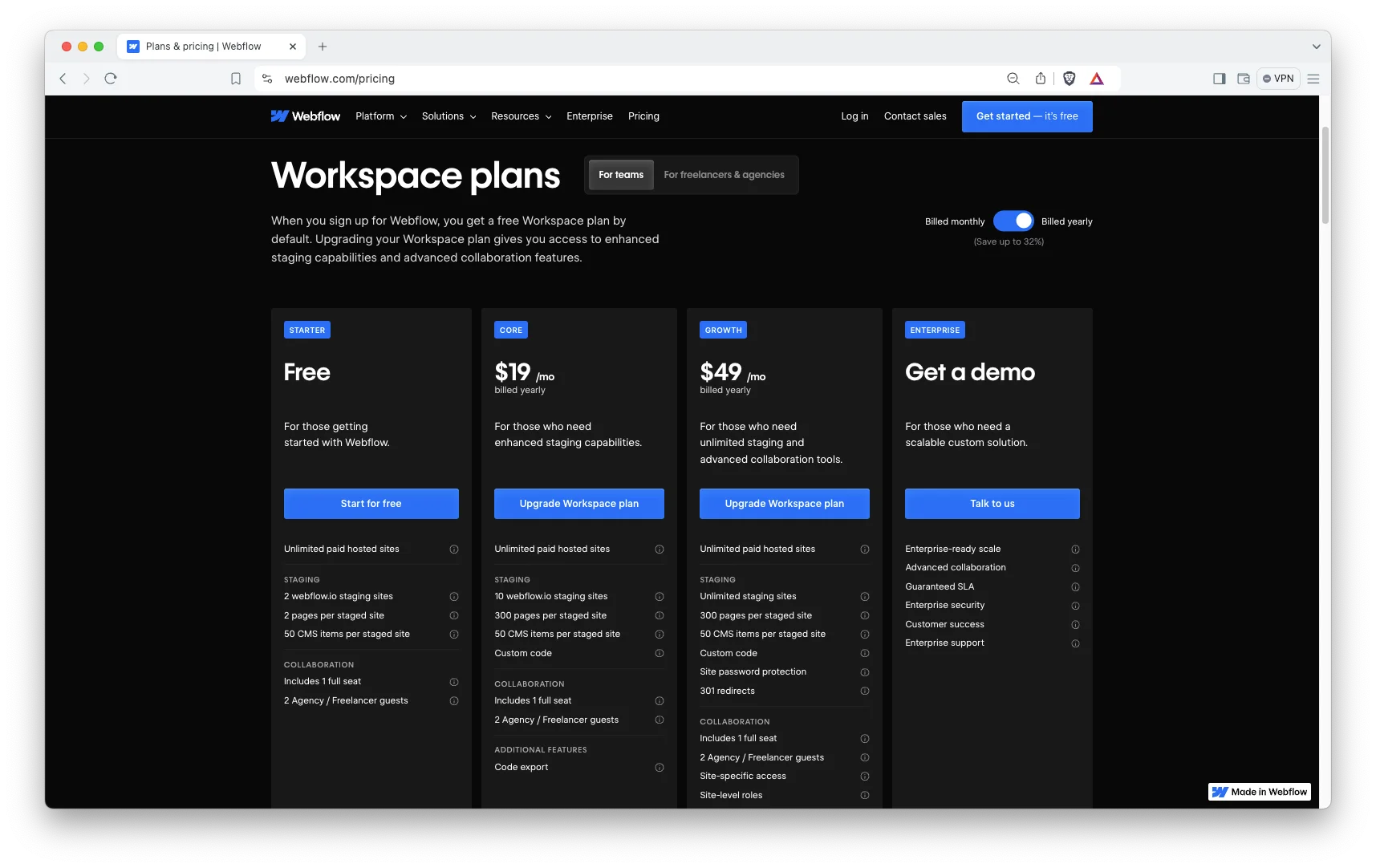
- Freelancer Plan ($16/month, annual billing): This plan works best for solo freelancers. It gives you basic tools to collaborate and handle client billing, all for one user.
- Growth Plan ($49/month, annual billing): If you have a growing team, this plan is for you. It offers strong team collaboration, control over permissions, and good project management for multiple users.
- Enterprise Plan (Custom pricing): Large agencies should choose this plan. It provides custom features and dedicated support tailored to your specific needs, for any number of users.
Additional seats:
- Full seats (designers, developers): $39/month each
- Limited seats (content editors): $15/month each
Key Features Included in Each Plan
Let’s find out what features come with each plan to help you decide which one best suits your needs.
| Feature | Free Plan | Basic Site | CMS Site | Business Site | E-commerce | Workspace |
| Custom Domain | No | Yes | Yes | Yes | Yes | N/A |
| SSL Certificate | Yes | Yes | Yes | Yes | Yes | N/A |
| CMS Collections | Limited | No | Yes | Yes | Yes | N/A |
| Site Search | No | No | Yes | Yes | Yes | N/A |
| Form Submissions | 50 Lifetime | 500/month | 1,000/month | 2,500/month | Unlimited | N/A |
| Backups & Restore | No | Yes | Yes | Yes | Yes | N/A |
| E-commerce Features | No | No | No | No | Yes | N/A |
| Team Collaboration | No | No | No | No | No | Yes |
Additional Costs to Consider
When budgeting for Webflow, don’t forget these additional costs:
Domain Name: If you don’t already own a domain, you’ll need to buy one. Domains typically cost $10–$50 per year depending on the extension (.com, .net, etc.). You can buy domains through Webflow or third-party registrars like Cloudflare, GoDaddy or Namecheap.
Third-Party Integrations: Some integrations (email marketing, CRM, analytics) may have their own subscription fees.
Add-ons: Webflow offers optional add-ons like Optimize ($299/month) for SEO insights and Localization ($9+ per locale) for multi-language sites.
Transaction Fees: On Standard e-commerce plans, Webflow charges 2% per transaction. Upgrading to Plus or Advanced removes these fees.
Team Seats: If you work with a team, adding extra seats increases your monthly cost.
Custom Development or Design: There are many agencies like TNCFlow who help you to build your site faster ensuring professional touch. If you hire freelancers or agencies to help build your site, factor in those costs too.
Site or Workspace: Which Webflow Plan is Ideal for You?
It can get confusing to pick the right Webflow plan. You see “Site Plans” and “Workspace Plans,” and it’s tough to know what’s best for you. This section helps you understand.
Site Plans: For Your Live Website
Site Plans let you put single websites live on their own web address. You pay for each website separately. They work perfectly for people like store owners, content creators, or marketers who focus on just one brand or project.
Workspace Plans: For Your Team and Projects
Workspace Plans help you work with others on many projects or teams. You pay for each person who uses the plan. You can also build many websites here before you make them live with a Site Plan. These plans are great for agencies, freelancers, or teams handling lots of websites.
You Might Need Both
Often, you will use both a site plan and a workspace plan. Your Workspace is where you and your team build projects. A Site Plan is what you buy when you’re ready to publish a website. Remember, each live website still needs its own Site Plan, even if you use a Workspace.
Pick a Site Plan, if:
- You want to put a personal, marketing, or content website online.
- You only need one or two websites live at a time.
- You work alone or have a small business without a big team.
- You don’t need to work with others directly inside Webflow.
Pick a Workspace Plan, if:
- You build many projects for clients or your company.
- You need your team to work together and manage who does what.
- You give websites to clients or have many projects you haven’t published yet.
- You want to manage billing and projects all in one place.
How to Choose the Best Webflow Pricing Plan for You
Choosing the right Webflow plan depends on your industry, the specific needs of your website, and the level of functionality and design you require. Here’s a simple decision guide based on your needs:
| Scenario/Specific users | Recommended Plan(s) |
| Learning or prototyping | Free Starter Plan |
| Simple business or portfolio site | Basic Site Plan |
| Blog, magazine, or content site | CMS Site Plan |
| High-traffic marketing site | Business Site Plan |
| Small online store | Standard E-commerce Plan |
| Growing online store | Plus E-commerce Plan |
| Large online store | Advanced E-commerce Plan |
| Freelancer working solo | Freelancer Workspace Plan + Site Plan |
| Retail & Ecommerce businesses | Advanced eCommerce plans |
| Small team or agency | Growth Workspace Plan + Site Plans |
How to Budget for Webflow: Step-by-Step
When choosing your Webflow plan, think about your current needs and growth potential.
Step 1: Define Your Website Goals
- What type of website do you want? (Portfolio, blog, e-commerce, agency site)
- How much content or products will you have?
- Will you need team collaboration?
Step 2: Choose Your Core Plan
- Pick a Site Plan or E-commerce Plan based on your goals.
- Add a Workspace Plan if you work with others.
Step 3: Add Domain and Extras
- Budget for domain registration ($10–$50/year).
- Estimate any add-ons or integrations you might need.
Step 4: Calculate Monthly and Annual Costs
- Use annual billing to get discounts.
- Add team seats if applicable.
- Include transaction fees if on Standard e-commerce.
Step 5: Plan for Growth
- Leave room in your budget to upgrade plans as your traffic or team grows.
Tips to Save Money on Webflow
Webflow offers a lot of flexibility. If you make smart decisions, you can save money. Here are some ways to save money:
- Pay Yearly: Save 20-25% by choosing annual billing instead of monthly. If you plan to use Webflow for a long time, this simply lowers your total cost.
- Pick the Right Plan First: Don’t pay for features you won’t use. For example, if you don’t need a blog, a Basic Site Plan costs less than CMS or Business Plans.
- Limit Team Seats: Only add paid seats for team members who truly need to design or manage the site. Others can still look or comment for free.
- Skip unnecessary add-ons cost: Features like optimize and analyze are strong tools, but you might not need them right away. You can always add them later when your site grows.
- Charge Clients Directly: If you’re an agency or freelancer, use Webflow’s client billing. This lets you charge clients for their hosting so you don’t pay for it yourself.
- Clear Out Old Projects: Free Starter Workspaces limit how many unhosted sites you can have. Deleting old drafts or unused projects helps you avoid paying for upgrades you don’t need.
Why Should You Invest in Webflow?
Webflow pricing may seem complicated at first. But once you understand its features, you will be able to easily choose the right plan. It gives you the flexibility to build any vision. Its CMS capabilities, e-commerce options, and collaboration tools make it a top choice for designers and businesses.
For advanced users or teams, Workspace Plans offer more flexibility and power to manage multiple projects and clients. You can also test any paid plan with a 30-day free trial before you commit.
Additionally, webflow has a huge collection of ready website templates by creators like TNCFlow, which fast forwards your website launch. You can literally start your website of any type (Agency, Ecommerce, CMS, SaaS, Automotive, Community, marketing or others) within a few hours. Go ahead and check out our webflow templates to get some idea about what kind of extraordinary templates we’ve prepared for you!
How can TNCFlow Help?
Good question, right? At TNCFlow we focus on creating extraordinary website templates for any niche to make your website development journey fast and smooth. Additionally, we provide custom design, development & customization services. If you’re in need of any of those, please go ahead and request a quote or use the live chat icon on bottom right to connect with an agent immediately!
Conclusion
Choosing the right Webflow pricing plan starts with knowing what your website needs now and what it might need in the future. You can start with the free Starter plan, create a blog or portfolio using a CMS plan, or run an online store using e-commerce. Webflow also offers Workspace plans if you work with a team. It has options that fit different goals and budgets.
To choose the best Webflow plan, you need to combine your budget limits and what you want to achieve with Webflow. Choosing a plan is just the beginning. Don’t make the mistake of paying for features you won’t use or picking a plan that can’t grow with your site.
You will get the most value from Webflow and keep your budget under control by picking the right plan from the start and upgrading when needed. Now that you understand how Webflow pricing works, you’re ready to choose the perfect plan and build a website that grows with you.




0 Comments