


Building your dream website feels exciting, right? If you’re planning to build a website, Webflow is one of the most powerful and flexible no-code platforms available today. It allows you to design, build, and launch professional websites. But when it comes to Webflow pricing, you may find this overwhelming. There are multiple plans, add-ons, billing options, and features that affect your final cost.
Webflow pricing can be confusing if you don’t know which one is right for you. You will see different plans, site plans and workspaces. Many people get stuck here and are afraid of hidden fees or choosing the wrong plan. It depends on your needs, business requirements, features and your budget. In this article, I will discuss everything from free plans to advanced enterprise options. You will learn how to select the ideal plan for your website.
Every figure on this page was checked against Webflow’s official pricing page at the time of writing. Webflow revises its plans periodically, so confirm the current numbers there before you commit to a budget.
Why is Webflow Pricing & Budgeting Important?
You have designed a beautiful website in Webflow. You are excited to launch it, but then you realize you need to pay for hosting, add team members, or enable e-commerce features. Then, suddenly your budget doubles or triples. However, once you break down the pricing system, it’s not that difficult. Let’s explore why budgeting is important.
- Avoid unexpected costs
- Choose the right plan for your project size and goals
- Plan your monthly or yearly expenses accurately
- Scale your website and team efficiently as you grow
Overview of Webflow Pricing Structure
Webflow’s pricing is split into three main categories:
1. Free Plan: This starting point gives you full control over your designs and access to helpful lessons. This is not a temporary test, you can use it forever. Just know some important features will be locked. It’s a great way to begin if you’re new to Webflow and want to see how everything works.
2. Site Plans: These plans give your website Webflow’s powerful hosting and CMS features. They include standard options for personal or business sites and special e-commerce plans. With any of these plans, you can use your own custom web address while enjoying Webflow’s amazing hosting.
3. Workspaces: These plans are perfect for teams and freelancers. They help you manage many projects or websites and work together more easily. The price depends on how many people use the plan.
Each category serves a different purpose, and you might need a combination depending on your use case.
Detailed Breakdown of Webflow Plans
Free Starter Plan
The Free Starter plan is perfect if you’re new to Webflow or want to experiment without spending money.
What you get:
- Build and publish up to 2 projects with Webflow subdomains (yoursite.webflow.io)
- Up to 2 static pages per site
- Access to Webflow’s design and CMS tools (limited CMS items)
- 50 form submissions lifetime
- 1 GB bandwidth per project
Limitations:
- No custom domain connection
- Limited CMS and form submissions
- No site password protection or backups
This plan is ideal for learning Webflow, building prototypes, or showcasing your portfolio without going live on a custom domain.
Site Plans
Site plans are for hosting your website on your own custom domain, with full access to Webflow’s hosting infrastructure. If you’re ready to put your site online or need more features, Webflow site plans are perfect. These plans are for individual websites. They come in different levels. Site Plan Pricing:
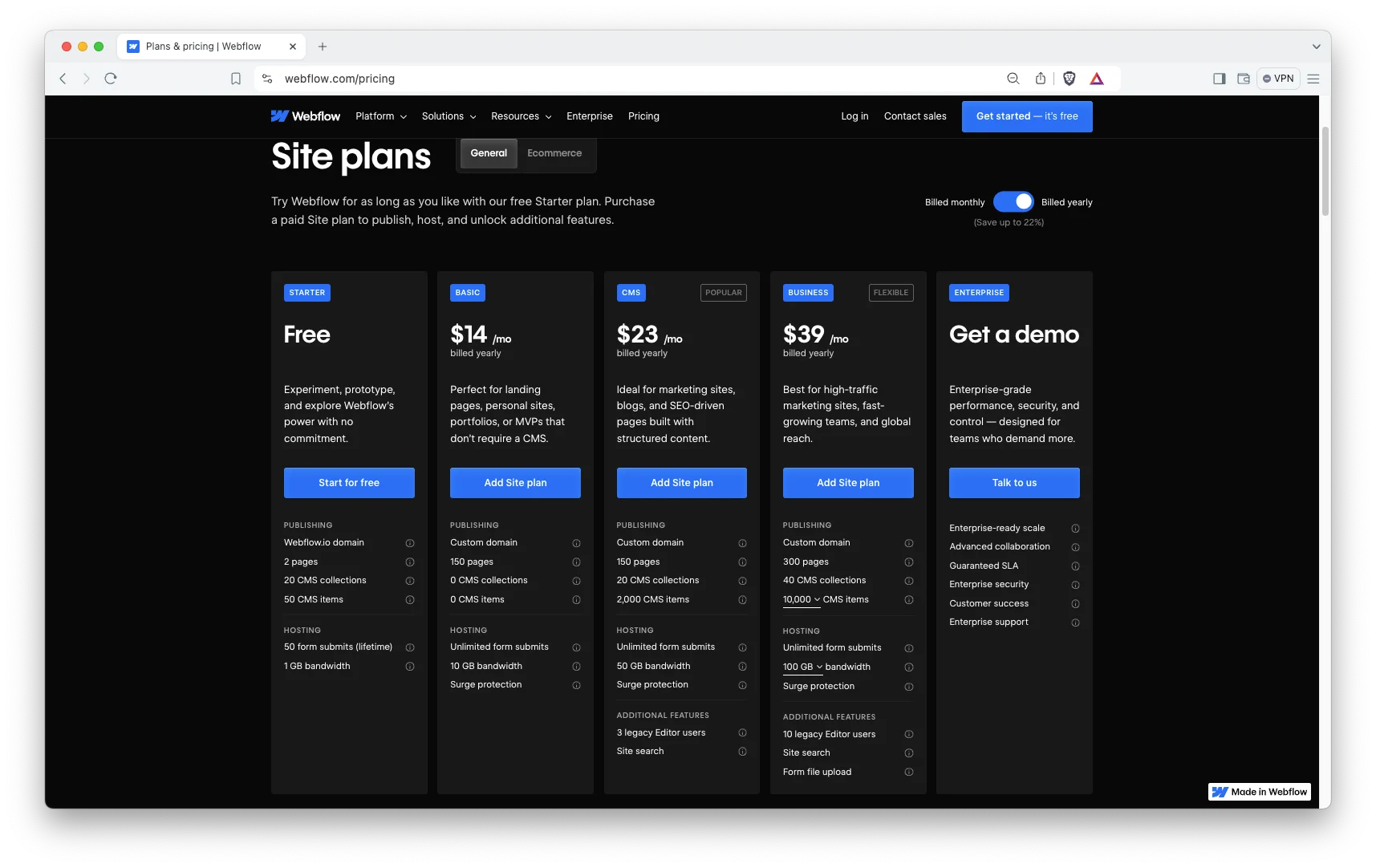
- Basic Plan: Starts at $14 per month. This is ideal for personal websites, blogs, or portfolios. It allows you to add a custom domain, but you can’t use Webflow’s e-commerce features or localization.
- CMS Plan: Starting at $23 per month, this plan includes Webflow’s powerful Content Management System (CMS), perfect for blogs and content-driven sites.
- Business Plan: Starting at $39 per month, this plan is designed for more robust websites that require higher traffic.
- Enterprise Plan: Enterprise Plan offers custom pricing tailored for large organizations. It provides custom scalability, guaranteed uptime (SLAs), and dedicated support, all customized to your specific needs. You also get custom user seats, designed to fit your large team.
Key Notes:
- The Basic plan does not support CMS collections, so it’s best for static sites.
- CMS and Business plans allow you to create dynamic content like blogs, portfolios, and news sites.
- Enterprise plans offer custom options and dedicated support for large companies.
E-commerce Plans
If you sell products or services online, Webflow’s ecommerce plans give you everything you need. You can build and run your entire online store properly.
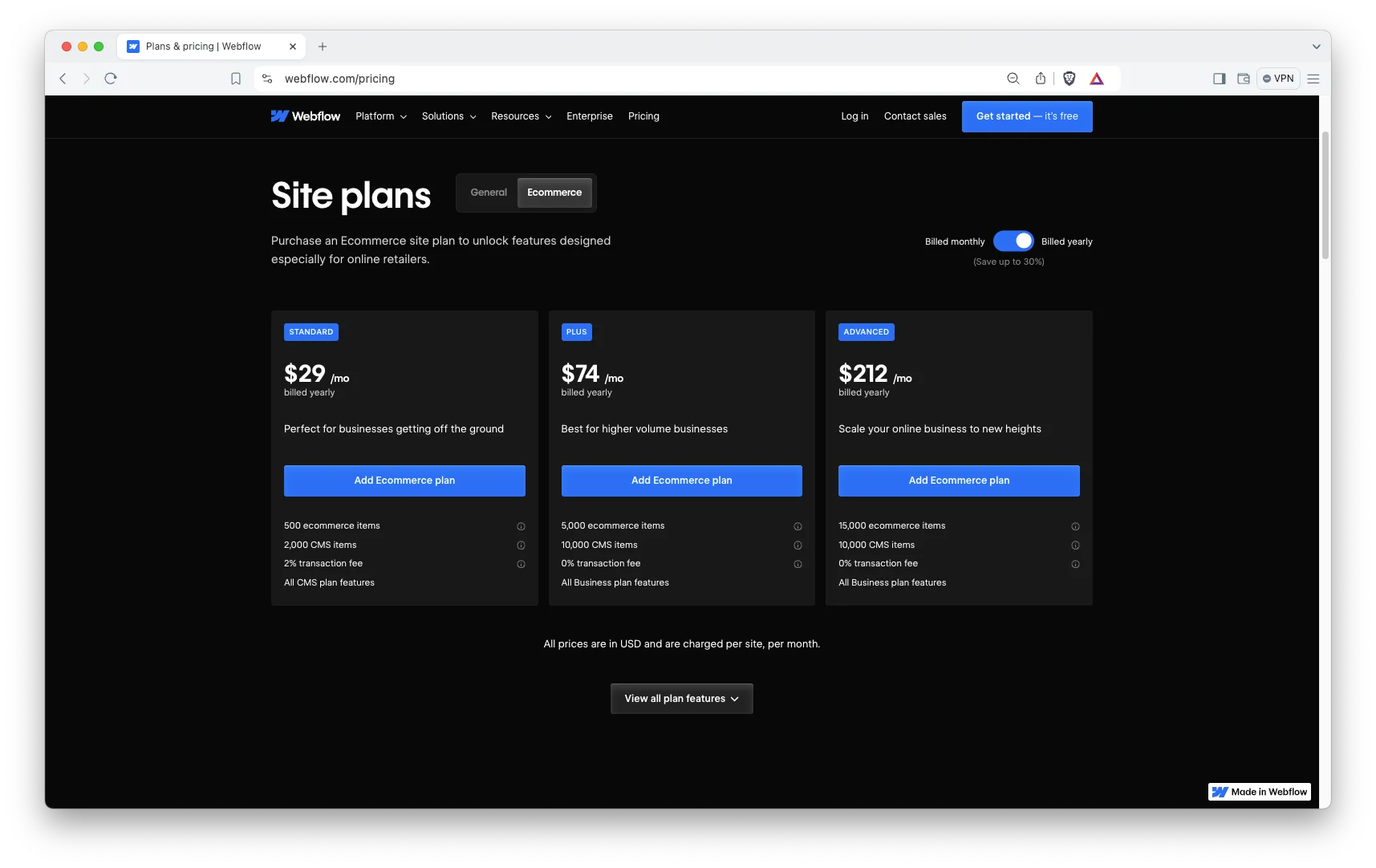
- Standard Plan ($29/month, billed annually): This plan suits small stores, letting you manage up to 500 products with basic e-commerce features. It includes a 2% transaction fee.
- Plus Plan ($74/month, billed annually): Designed for growing businesses, this plan offers advanced features and handles up to 5,000 products. Crucially, it has a 0% transaction fee.
- Advanced Plan ($212/month, billed annually): Ideal for large stores, this plan handles up to 15,000 products, adds priority support, and also comes with a 0% transaction fee.
Features include:
- Customizable product pages
- Payment gateways like Stripe and PayPal
- Inventory management
- Shipping and tax options
- Customer accounts and discounts
Workspaces
Workspace plans are designed for teams and agencies managing multiple projects and clients. This plan is great for teams aiming to expand. It costs $49 per user each month if billed yearly, or $60 per user each month if billed monthly.
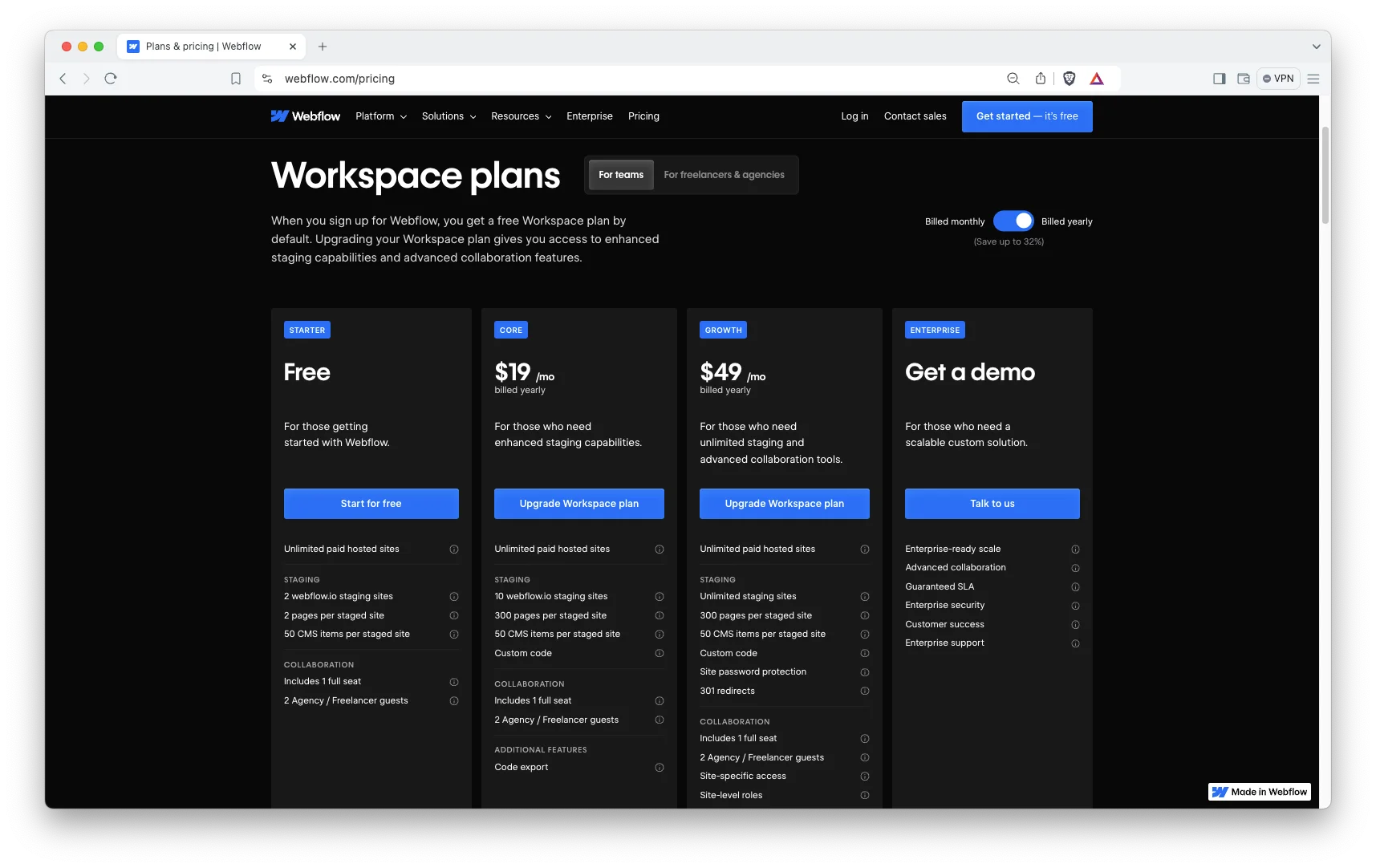
- Freelancer Plan ($16/month, annual billing): This plan works best for solo freelancers. It gives you basic tools to collaborate and handle client billing, all for one user.
- Growth Plan ($49/month, annual billing): If you have a growing team, this plan is for you. It offers strong team collaboration, control over permissions, and good project management for multiple users.
- Enterprise Plan (Custom pricing): Large agencies should choose this plan. It provides custom features and dedicated support tailored to your specific needs, for any number of users.
Additional seats:
- Full seats (designers, developers): $39/month each
- Limited seats (content editors): $15/month each
Key Features Included in Each Plan
Let’s find out what features come with each plan to help you decide which one best suits your needs.
| Feature | Free Plan | Basic Site | CMS Site | Business Site | E-commerce | Workspace |
| Custom Domain | No | Yes | Yes | Yes | Yes | N/A |
| SSL Certificate | Yes | Yes | Yes | Yes | Yes | N/A |
| CMS Collections | Limited | No | Yes | Yes | Yes | N/A |
| Site Search | No | No | Yes | Yes | Yes | N/A |
| Form Submissions | 50 Lifetime | 500/month | 1,000/month | 2,500/month | Unlimited | N/A |
| Backups & Restore | No | Yes | Yes | Yes | Yes | N/A |
| E-commerce Features | No | No | No | No | Yes | N/A |
| Team Collaboration | No | No | No | No | No | Yes |
Additional Costs to Consider
When budgeting for Webflow, don’t forget these additional costs:
Domain Name: If you don’t already own a domain, you’ll need to buy one. Domains typically cost $10–$50 per year depending on the extension (.com, .net, etc.). You can buy domains through Webflow or third-party registrars like Cloudflare, GoDaddy or Namecheap.
Third-Party Integrations: Some integrations (email marketing, CRM, analytics) may have their own subscription fees.
Add-ons: Webflow offers optional add-ons like Optimize ($299/month) for SEO insights and Localization ($9+ per locale) for multi-language sites.
Transaction Fees: On Standard e-commerce plans, Webflow charges 2% per transaction. Upgrading to Plus or Advanced removes these fees.
Team Seats: If you work with a team, adding extra seats increases your monthly cost.
Design and build: This is the cost most people forget. A custom Webflow build from an agency typically runs into the thousands, while a premium template is a one time cost between $29 and $129. If your budget is tight, the template route is what keeps the project affordable, and it is covered in more detail further down this page.
Site or Workspace: Which Webflow Plan is Ideal for You?
It can get confusing to pick the right Webflow plan. You see “Site Plans” and “Workspace Plans,” and it’s tough to know what’s best for you. This section helps you understand.
Site Plans: For Your Live Website
Site Plans let you put single websites live on their own web address. You pay for each website separately. They work perfectly for people like store owners, content creators, or marketers who focus on just one brand or project.
Workspace Plans: For Your Team and Projects
Workspace Plans help you work with others on many projects or teams. You pay for each person who uses the plan. You can also build many websites here before you make them live with a Site Plan. These plans are great for agencies, freelancers, or teams handling lots of websites.
You Might Need Both
Often, you will use both a site plan and a workspace plan. Your Workspace is where you and your team build projects. A Site Plan is what you buy when you’re ready to publish a website. Remember, each live website still needs its own Site Plan, even if you use a Workspace.
Pick a Site Plan, if:
- You want to put a personal, marketing, or content website online.
- You only need one or two websites live at a time.
- You work alone or have a small business without a big team.
- You don’t need to work with others directly inside Webflow.
Pick a Workspace Plan, if:
- You build many projects for clients or your company.
- You need your team to work together and manage who does what.
- You give websites to clients or have many projects you haven’t published yet.
- You want to manage billing and projects all in one place.
How to Choose the Best Webflow Pricing Plan for You
Choosing the right Webflow plan depends on your industry, the specific needs of your website, and the level of functionality and design you require. Here’s a simple decision guide based on your needs:
| Scenario/Specific users | Recommended Plan(s) |
| Learning or prototyping | Free Starter Plan |
| Simple business or portfolio site | Basic Site Plan |
| Blog, magazine, or content site | CMS Site Plan |
| High-traffic marketing site | Business Site Plan |
| Small online store | Standard E-commerce Plan |
| Growing online store | Plus E-commerce Plan |
| Large online store | Advanced E-commerce Plan |
| Freelancer working solo | Freelancer Workspace Plan + Site Plan |
| Retail & Ecommerce businesses | Advanced eCommerce plans |
| Small team or agency | Growth Workspace Plan + Site Plans |
Which Webflow Plan Does Your Template Need?
Here is the part most pricing guides miss. The plan you need is decided by the template you build on, not the other way round. A static brochure template runs happily on Basic. The moment a template uses CMS collections for blog posts, projects or services, you need the CMS plan at minimum. And any template with a cart requires an ecommerce plan regardless of how small the shop is.
So check what the template actually uses before you pick a tier. These examples show how the mapping works in practice.
- Basic plan is enough: TNC Sales Funnel, a one page course funnel with no CMS at all. $29.
- CMS plan needed: Somers, a creative agency template with CMS driven projects and team members. $59.
- CMS plan needed: ShieldOS, a dark cybersecurity and SaaS template. $59.
- CMS plan needed: DigiMark, a digital marketing agency template. $49.
- Business plan worth it: TNC Conf, an event template where traffic spikes around the date. $49.
- Ecommerce plan required: Ecommerce TNC, a general storefront on Webflow native ecommerce. $79.
- Ecommerce plan required: FurniFlow TNC, furniture and interiors with customer accounts. $79.
- Ecommerce plan required: Trendy TNC, a fashion store template. $79.
Browse the full range of Webflow templates by TNCFlow to see which plan your build would need.
How to Budget for Webflow: Step-by-Step
When choosing your Webflow plan, think about your current needs and growth potential.
Step 1: Define Your Website Goals
- What type of website do you want? (Portfolio, blog, e-commerce, agency site)
- How much content or products will you have?
- Will you need team collaboration?
Step 2: Choose Your Core Plan
- Pick a Site Plan or E-commerce Plan based on your goals.
- Add a Workspace Plan if you work with others.
Step 3: Add Domain and Extras
- Budget for domain registration ($10–$50/year).
- Estimate any add-ons or integrations you might need.
- Add the one off cost of a template, typically $29 to $129.
Step 4: Calculate Monthly and Annual Costs
- Use annual billing to get discounts.
- Add team seats if applicable.
- Include transaction fees if on Standard e-commerce.
Step 5: Plan for Growth
- Leave room in your budget to upgrade plans as your traffic or team grows.
Tips to Save Money on Webflow
Webflow offers a lot of flexibility. If you make smart decisions, you can save money. Here are some ways to save money:
- Pay Yearly: Save 20-25% by choosing annual billing instead of monthly. If you plan to use Webflow for a long time, this simply lowers your total cost.
- Pick the Right Plan First: Don’t pay for features you won’t use. For example, if you don’t need a blog, a Basic Site Plan costs less than CMS or Business Plans.
- Start From a Template: A custom build is the single largest line in most Webflow budgets. A premium template covers the design and interactions for a one off $29 to $129, which is usually less than one day of agency time.
- Limit Team Seats: Only add paid seats for team members who truly need to design or manage the site. Others can still look or comment for free.
- Skip unnecessary add-ons cost: Features like optimize and analyze are strong tools, but you might not need them right away. You can always add them later when your site grows.
- Charge Clients Directly: If you’re an agency or freelancer, use Webflow’s client billing. This lets you charge clients for their hosting so you don’t pay for it yourself.
- Clear Out Old Projects: Free Starter Workspaces limit how many unhosted sites you can have. Deleting old drafts or unused projects helps you avoid paying for upgrades you don’t need.
Why Should You Invest in Webflow?
Webflow pricing may seem complicated at first. But once you understand its features, you will be able to easily choose the right plan. It gives you the flexibility to build any vision. Its CMS capabilities, e-commerce options, and collaboration tools make it a top choice for designers and businesses.
For advanced users or teams, Workspace Plans offer more flexibility and power to manage multiple projects and clients. You can also test any paid plan with a 30-day free trial before you commit.
Additionally, there is a huge collection of ready made website templates by creators like TNCFlow, which fast forwards your website launch. You can literally start your website of any type (Agency, Ecommerce, CMS, SaaS, Automotive, Community, marketing or others) within a few hours. Go ahead and check out our Webflow templates to get some idea about what kind of extraordinary templates we’ve prepared for you!
How can TNCFlow Help?
Good question, right? At TNCFlow we focus on creating extraordinary website templates for any niche to make your website development journey fast and smooth. Additionally, we provide custom design, development & customization services. If you’re in need of any of those, please go ahead and request a quote or use the live chat icon on bottom right to connect with an agent immediately!
Webflow Pricing: Frequently Asked Questions
Is Webflow free?
Yes, Webflow has a free Starter plan with no time limit. You can design and publish up to two projects on a webflow.io subdomain. What you cannot do on the free plan is connect a custom domain, which is why most people move to a paid Site Plan when they are ready to launch.
How much does Webflow cost per month?
Site Plans start at $14 per month for Basic, $23 for CMS and $39 for Business. Ecommerce starts at $29 per month billed annually. Workspace plans are charged per user, starting at $16 per month for a freelancer. Check Webflow’s pricing page for the current figures.
What is the Webflow Starter plan?
Starter is Webflow’s free tier. It gives you two projects, two static pages per site, limited CMS items, 50 lifetime form submissions and 1 GB of bandwidth. It is designed for learning and prototyping rather than for a live business site.
What is the difference between the Basic and CMS plans?
Basic has no CMS collections, so it only suits static sites. The CMS plan adds collections, site search and a higher form limit, which you need for any blog, portfolio or services site where content is added over time.
Do I need a Site Plan and a Workspace plan?
Often yes. The Workspace is where you and your team build, and the Site Plan is what publishes one website on a custom domain. Every live site needs its own Site Plan even if you already pay for a Workspace.
Is Webflow hosting included in the plan?
Yes. Every paid Site Plan includes Webflow’s hosting, an SSL certificate and its global CDN. You do not buy hosting separately, though you do still need to buy your own domain name.
Does a Webflow template cost extra on top of the plan?
Yes, but only once. A template is a one time purchase, typically $29 to $129, and it is separate from the monthly plan. It replaces the design and build cost rather than adding to your recurring spend.
Can I change my Webflow plan later?
Yes. You can upgrade or downgrade a Site Plan at any time, so starting on Basic and moving to CMS when you add a blog is a reasonable way to keep early costs down.
Conclusion
Choosing the right Webflow pricing plan starts with knowing what your website needs now and what it might need in the future. You can start with the free Starter plan, create a blog or portfolio using a CMS plan, or run an online store using e-commerce. Webflow also offers Workspace plans if you work with a team. It has options that fit different goals and budgets.
To choose the best Webflow plan, you need to combine your budget limits and what you want to achieve with Webflow. Choosing a plan is just the beginning. Don’t make the mistake of paying for features you won’t use or picking a plan that can’t grow with your site.
You will get the most value by picking the right plan from the start and upgrading when needed. Compare the tiers yourself on Webflow’s pricing page, and if you want to keep the build cost down as well, start from a premium Webflow template rather than a blank canvas. Now that you understand how Webflow pricing works, you’re ready to choose the perfect plan and build a website that grows with you.